
AI tools for furniture product photos, explained.
What each tool does, when to reach for it, and what great inputs look like so your first generation lands right.
Tool 1
Material swap
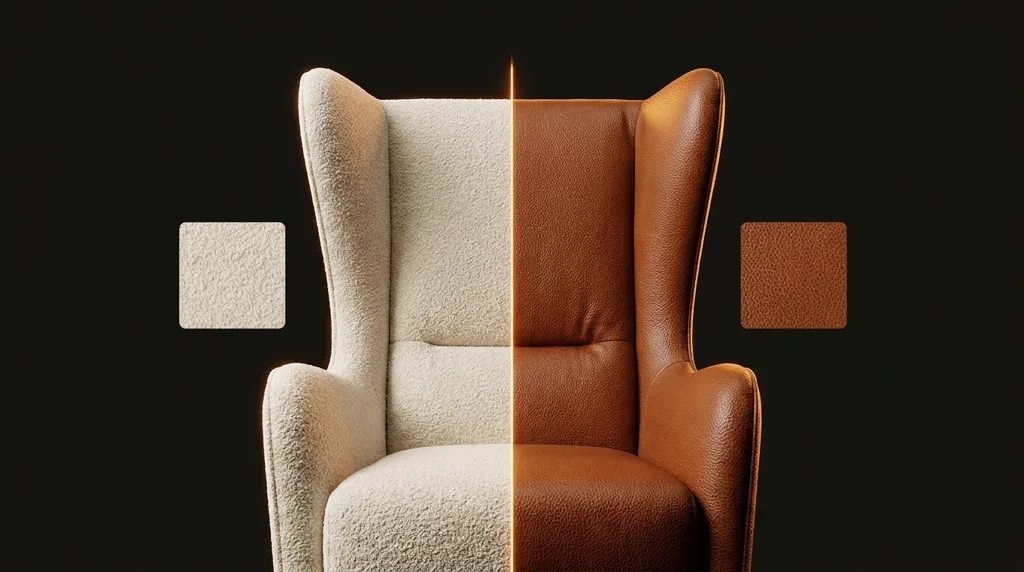
Recolors your piece using a swatch as the reference within the same material family. Fabric stays fabric, leather stays leather, wood stays wood. Shape, seams, buttons, piping and legs are locked; only the surface changes.
- Use it for: showing a sofa or chair in every colorway your supplier offers.
- The swatch drives everything: hue, lightness, grain and sheen are matched to it and the result is never lighter than your swatch.
- Best swatch: a flat, evenly lit close-up that fills the frame. No perspective, no shadows, no fingers.
Example: grey fabric sofa + sage green fabric swatch → the same sofa in sage green. Want fabric → leather instead? That's the next tool.
5 credits · per finished image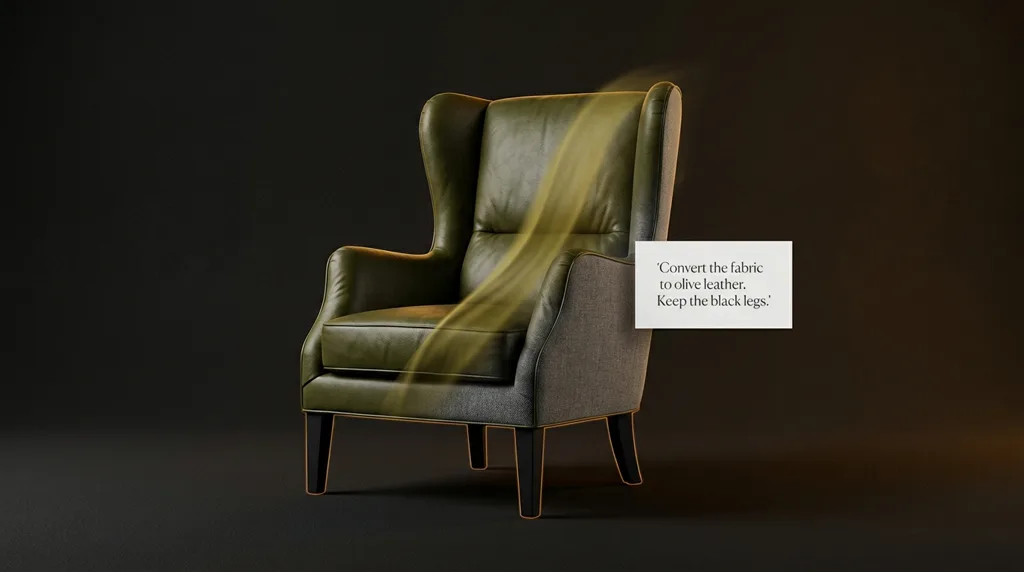
Tool 2
Refine with instructions
Material swap plus a short text instruction that takes priority. This is the tool for converting between material families and for changing specific parts like legs or frames.
- Use it for: fabric → leather conversions, new leg colors, wood-tone changes.
- Write it like a brief: one clear change, plain English, imperative. Say what must change and what must stay.
- If a result drifts: one extra run with a sharper instruction usually lands it.
Examples: “Convert the fabric upholstery to this olive leather. Keep the black wooden legs unchanged.” · “Change the oak legs to matte black metal.”
5 credits · per finished image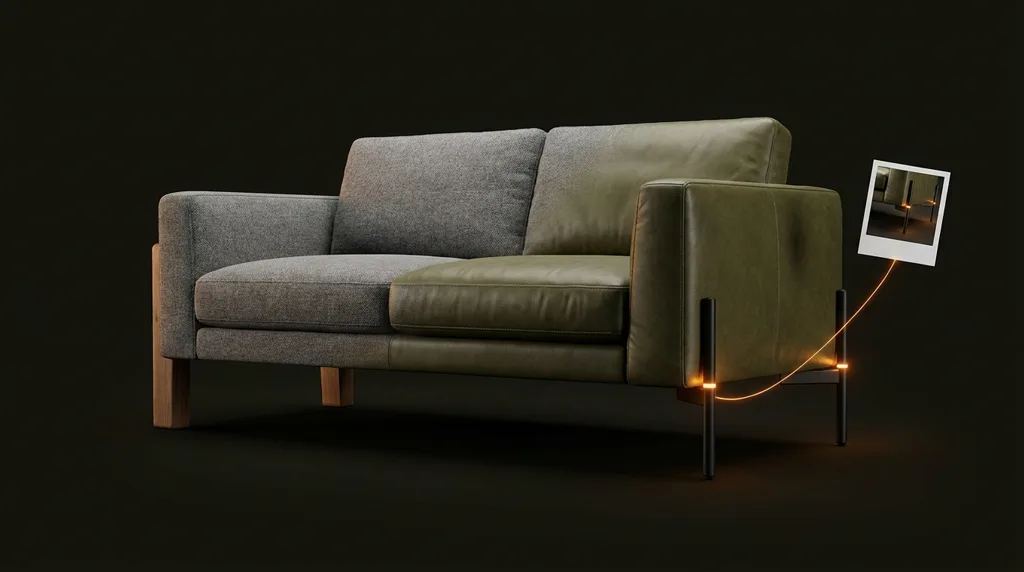
Tool 3
Refine + reference image
Everything Refine can do plus a third image that shows exactly what you mean. Perfect when words aren't precise enough: the specific legs, a particular pattern, the exact hardware.
- Use it for: changes where you have a photo of the target part or material not just a description.
- Three inputs: your product photo, the material swatch, and a reference image of the part.
- The text still leads: say what the reference is for, and the reference shows what it should look like.
Example: a sofa that should get this swatch and metal legs upload a photo of those exact legs and write: “Apply the swatch to the upholstery, and give the sofa the metal legs from the reference image.”
5 credits · per finished image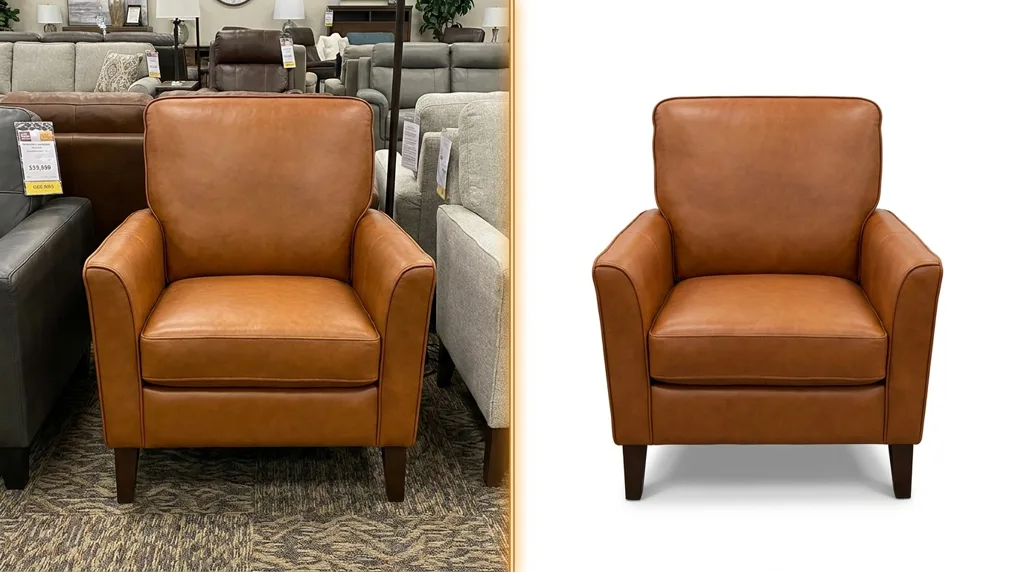
Tool 4
Remove background
Cuts your product out on a pure white studio background with a natural contact shadow. The product itself is untouched this is the fastest route from showroom phone photo to listing-ready image.
- Use it for: e-commerce listings, catalogs, price sheets anywhere you need a clean cut-out.
- No swatch needed just the product photo.
- One rule: the whole product must be visible in the photo. Nothing cropped can be invented.
Example: a quick phone shot of an armchair between other furniture → a crisp white-background image ready for your webshop.
1 credit · per finished image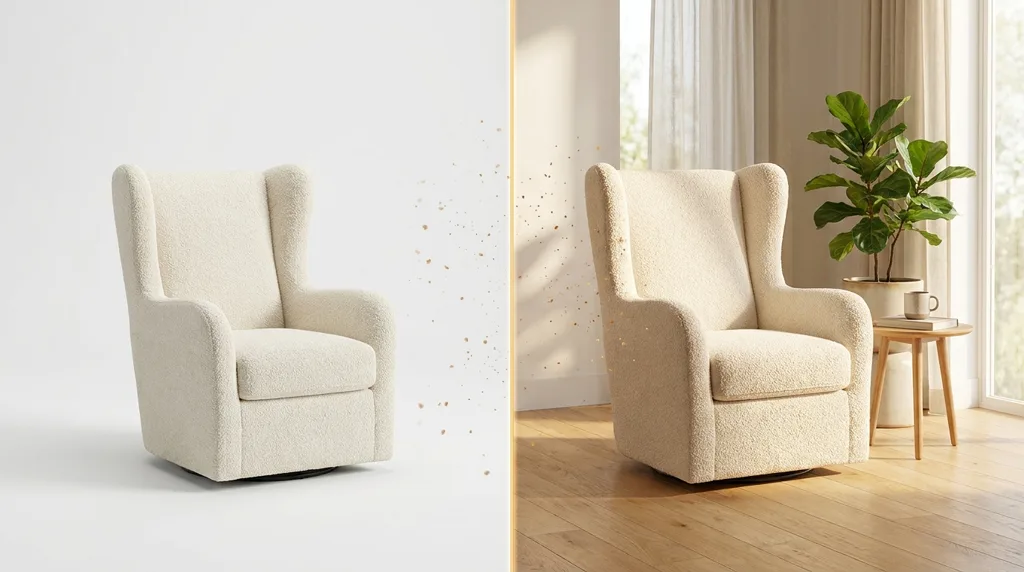
Tool 5
Environment scene
Builds a styled interior around your product. The piece stays exactly as photographed same geometry, same material, same colors and becomes the focal point of a realistic room.
- Use it for: lifestyle imagery, campaign visuals, inspiration shots without staging or a photographer.
- Describe the room in a sentence, or leave it empty and we style a fitting one.
- Light follows the scene: shadows and grounding are matched so the piece belongs in the room.
Example: “Bright Scandinavian living room, oak floor, soft morning light, a plant in the corner.”
5 credits · per finished image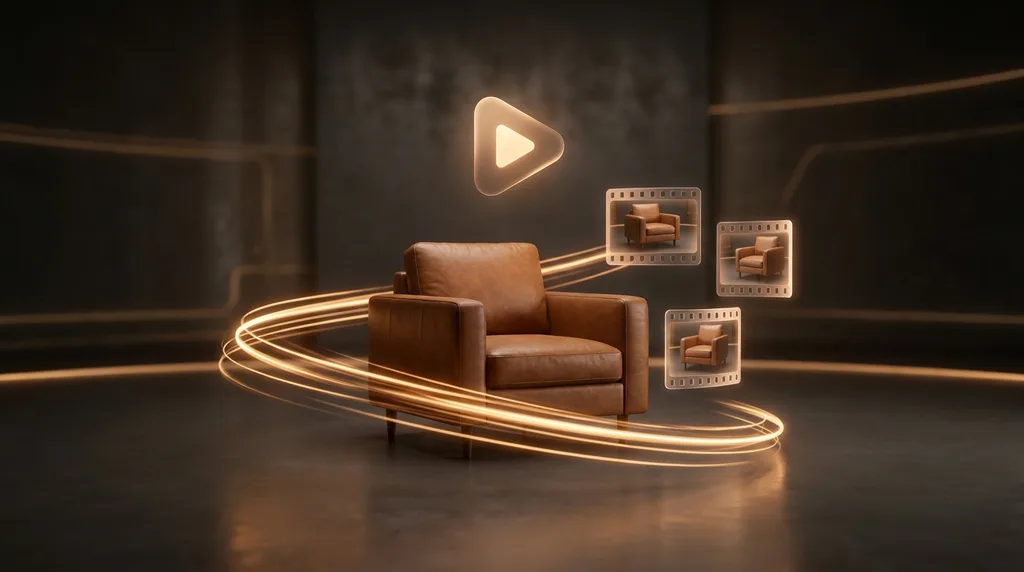
Pro · Tool 6
Marketing video
Turns any image you've generated into a finished marketing clip. Pick a look calm product shoots, commercials & TV spots with people, high-energy hyper-motion choose the format, and get a ready-to-post video.
- Looks: Premium product ad, Fast social ad, Camera push-in, Lifestyle with people, Energetic lifestyle.
- Formats: Story/Reels (9:16) or Wide (16:9) 10 or 15 seconds.
- Start from your best image: the clip is built from the exact frame you choose.
Example: your new cognac colorway → a 10-second Reels clip with a slow cinematic push-in, same evening.
1080p: 10 sec · 20 credits / 15 sec · 30 credits4K: 10 sec · 45 credits / 15 sec · 70 credits
Pro · Tool 7
Mobile capture studio
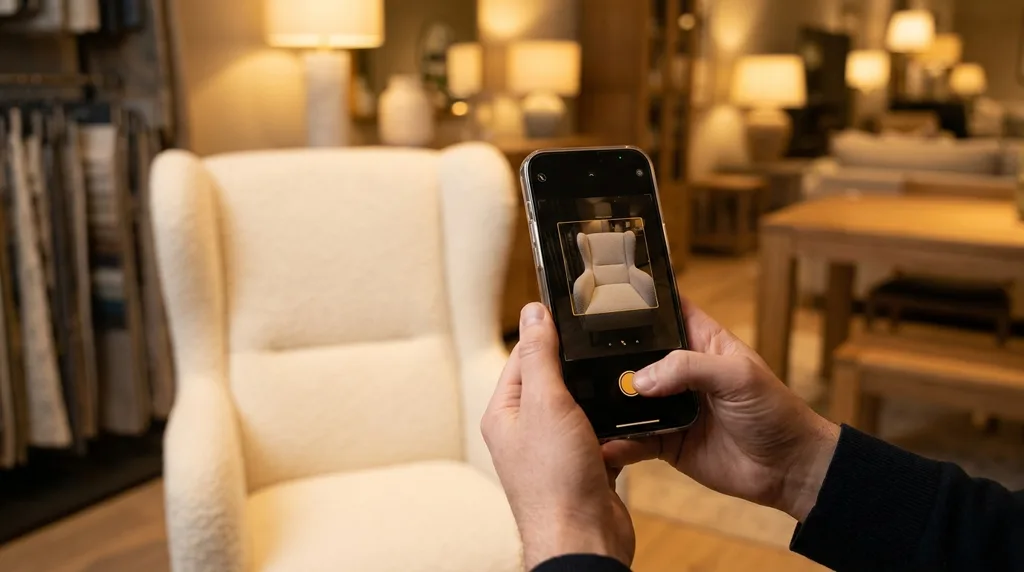
Your phone becomes the product photographer. Frame the piece in the fixed 1:1 camera, pick a material from your saved swatch library, and generate on the spot on the showroom floor, at the supplier, anywhere.
- Every shot is catalog-ready: the square frame means no cropping surprises later.
- Swatch library: your fabrics and leathers saved once, one tap away.
- Keeps running: switch apps or lock the phone the generation finishes on its own.
Example: a customer asks “does it come in cognac?” you show them, while they're still in the store.
5 credits · per finished image